5 Excel Shortcuts That Make Work Easier
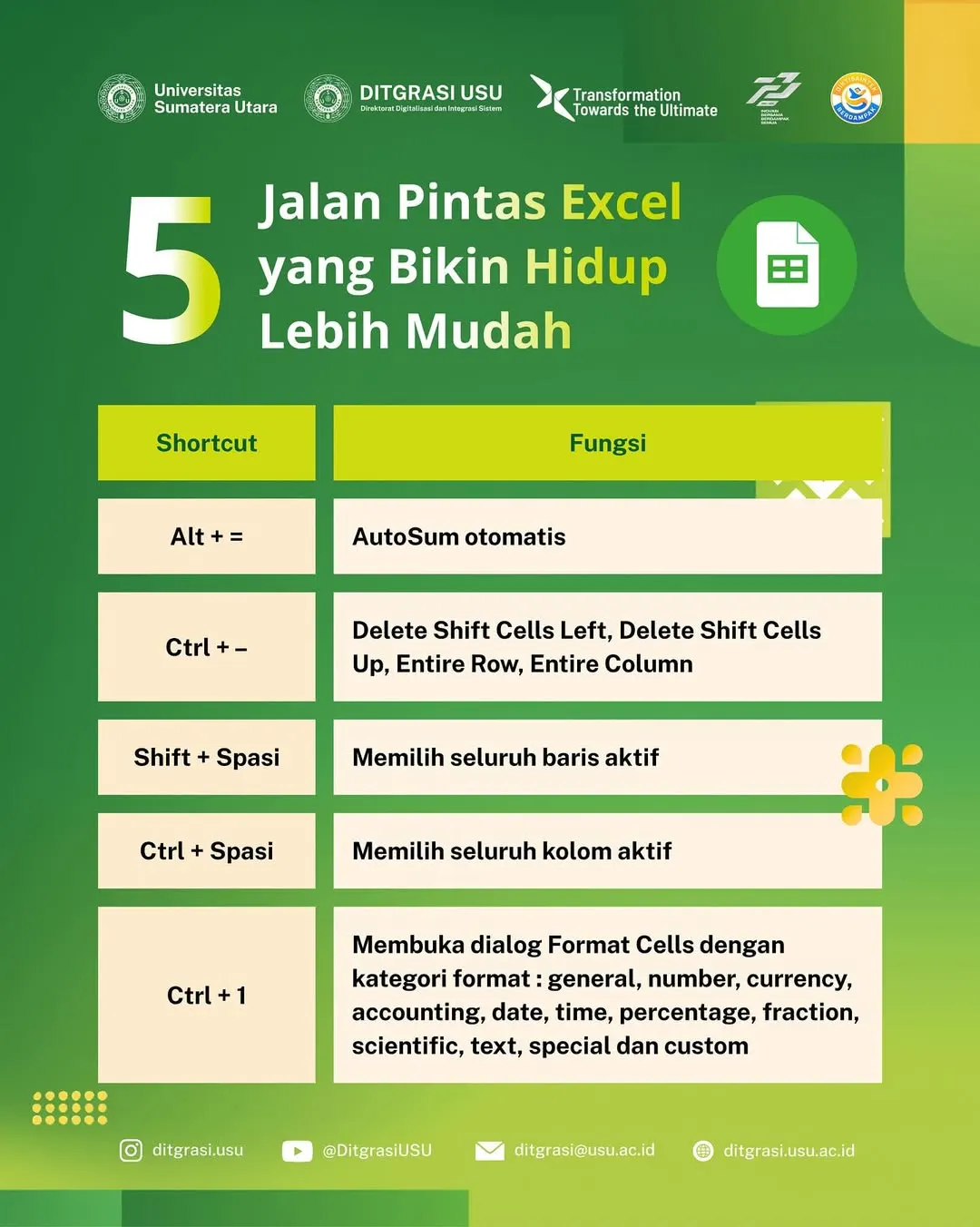
From data processing and calculations to report generation, Excel provides various features that can help make work faster and more precise.
Article
Microsoft Excel remains one of the most important tools in both academic and administrative activities. From data processing and calculations to report generation, Excel provides various features that can help make work faster and more precise.
To improve efficiency, there are several shortcuts that are often overlooked but are very helpful in speeding up the workflow. Here are five Excel shortcuts that can make your activities much easier.
1. ALT + = : Automatic AutoSum This combination is a shortcut to sum data automatically. By pressing this combination, Excel will immediately insert the AutoSum (SUM) function into the active cell and detect the range of numbers to be summed.
2. CTRL + – : Delete Cells with Shift Options By pressing CTRL + – (minus), users can open the delete cells dialog, which provides several options such as deleting cells and shifting them left, or deleting entire rows. This shortcut simplifies the data deletion process without having to open the menu manually.
3. SHIFT + Space : Select Entire Active Row Press SHIFT + Space to select the entire row where the active cell is located. This command is very helpful when you want to delete, move, or format a full row quickly.
4. CTRL + Space : Select Entire Active Column Unlike the previous command, the CTRL + Space combination is used to select the entire column of the currently active cell. This shortcut speeds up work when you want to adjust formatting, delete, or move data columns.
5. CTRL + 1 : Open Format Cells Dialog Through CTRL + 1, users can access the Format Cells window directly. This shortcut is very helpful when you want to customize the appearance of data quickly and precisely.